> For the complete documentation index, see [llms.txt](https://docs.openspaces.design/llms.txt). Markdown versions of documentation pages are available by appending `.md` to page URLs; this page is available as [Markdown](https://docs.openspaces.design/readme-1/advanced/setting-up-color-swatches.md).
# Setting Up Color Swatches
For Plain Jane and Interactive Only
**What You’ll Learn**
* How to assign a product category
* How to apply color swatches using Shopify's category metafields
* How to connect a color metafield to your theme’s product variants
### 1. Open the Product Page in the Theme Editor
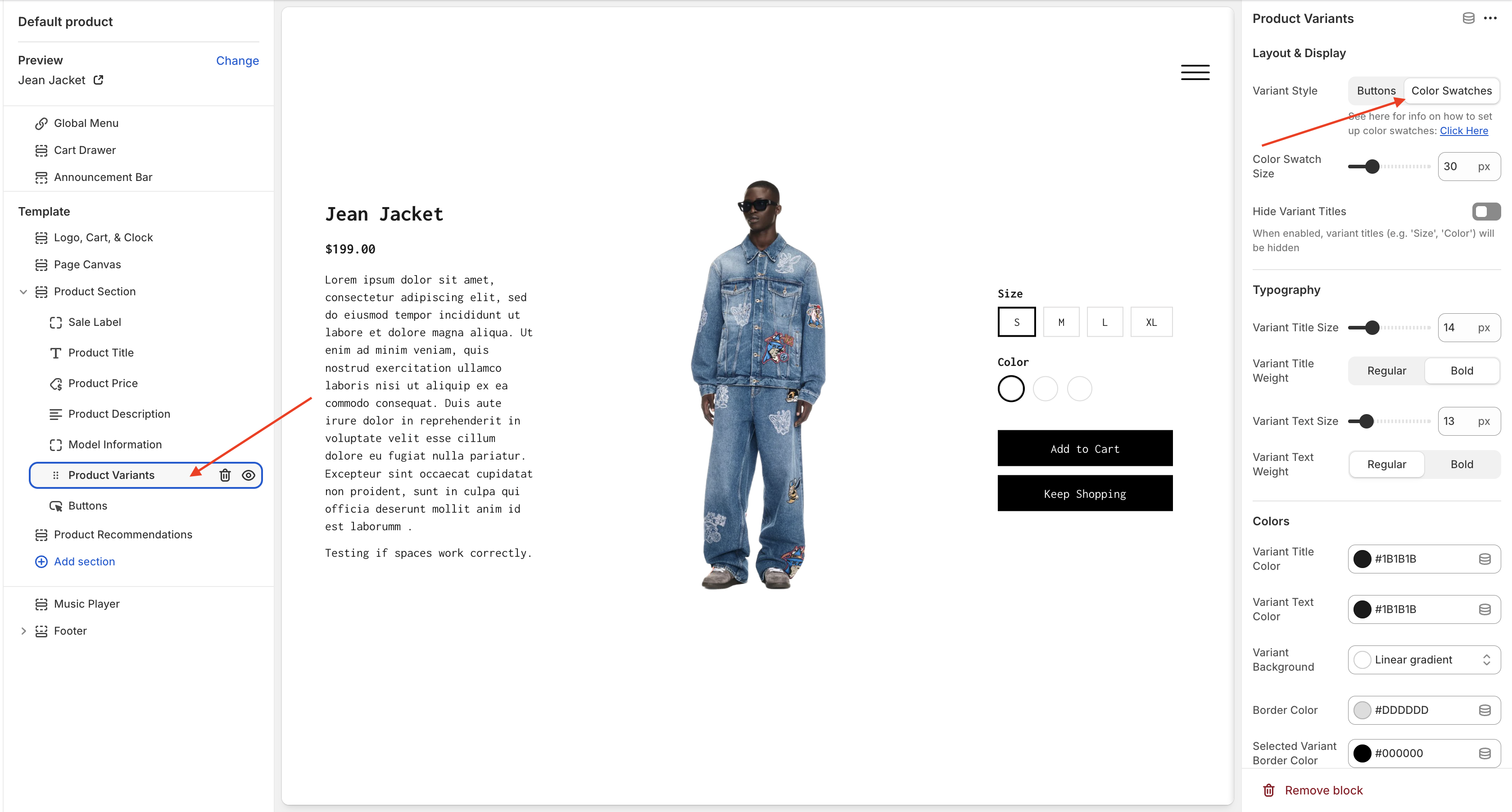
* In the Shopify admin, go to **Online Store > Themes**, then click **Customize** on your live theme.
* Navigate to a product page.
* Click the **Product Variants** block inside the **Product Section**.
* Under **Variant Style**, select **Color Swatches**.
> 💡 Tip: Use the preview selector to load a product that has multiple color variants.
### 2. Assign a Category in the Shopify Admin
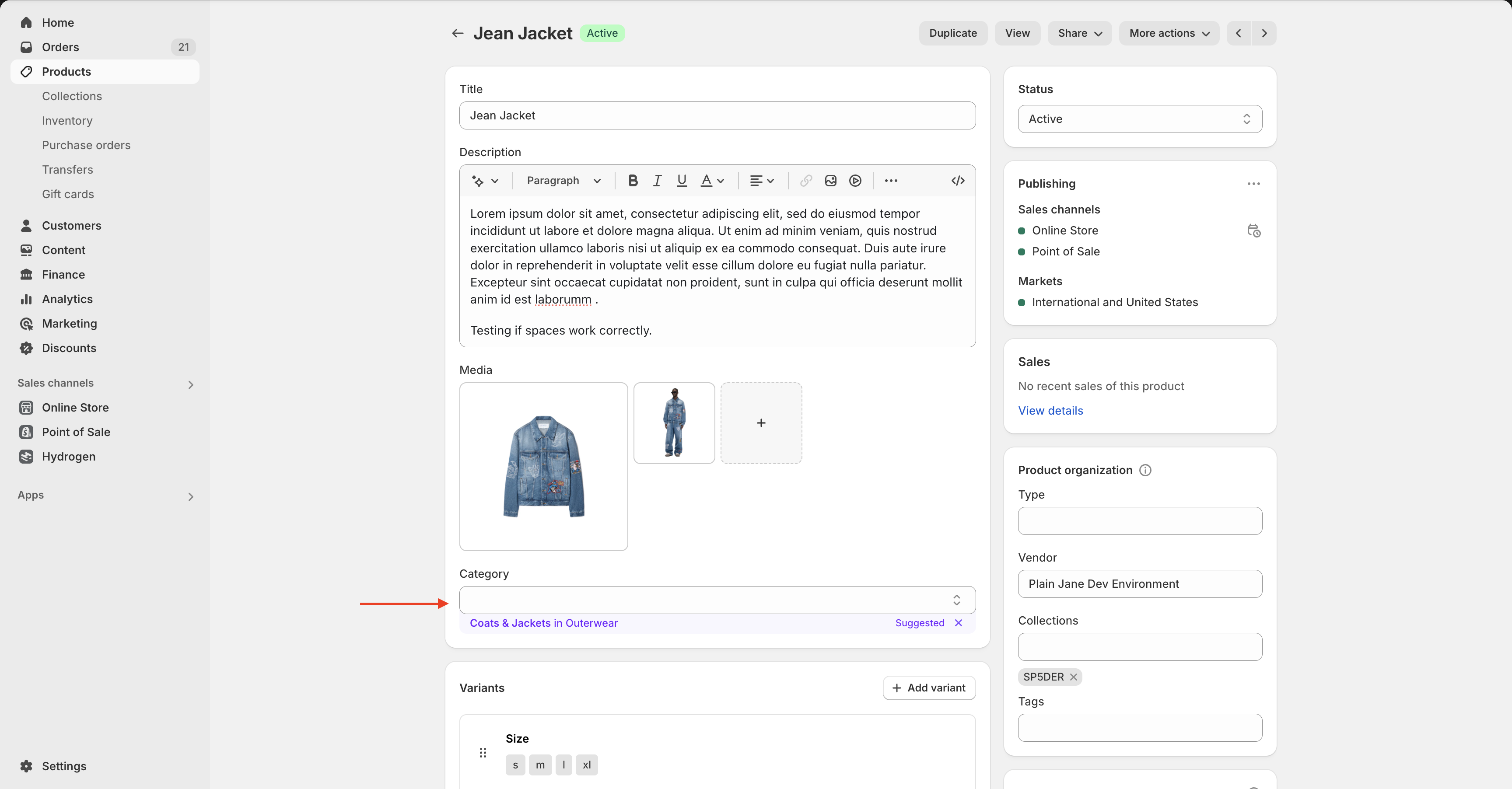
* Go to **Products** in the Shopify Admin.
* Click on the product you want to edit.
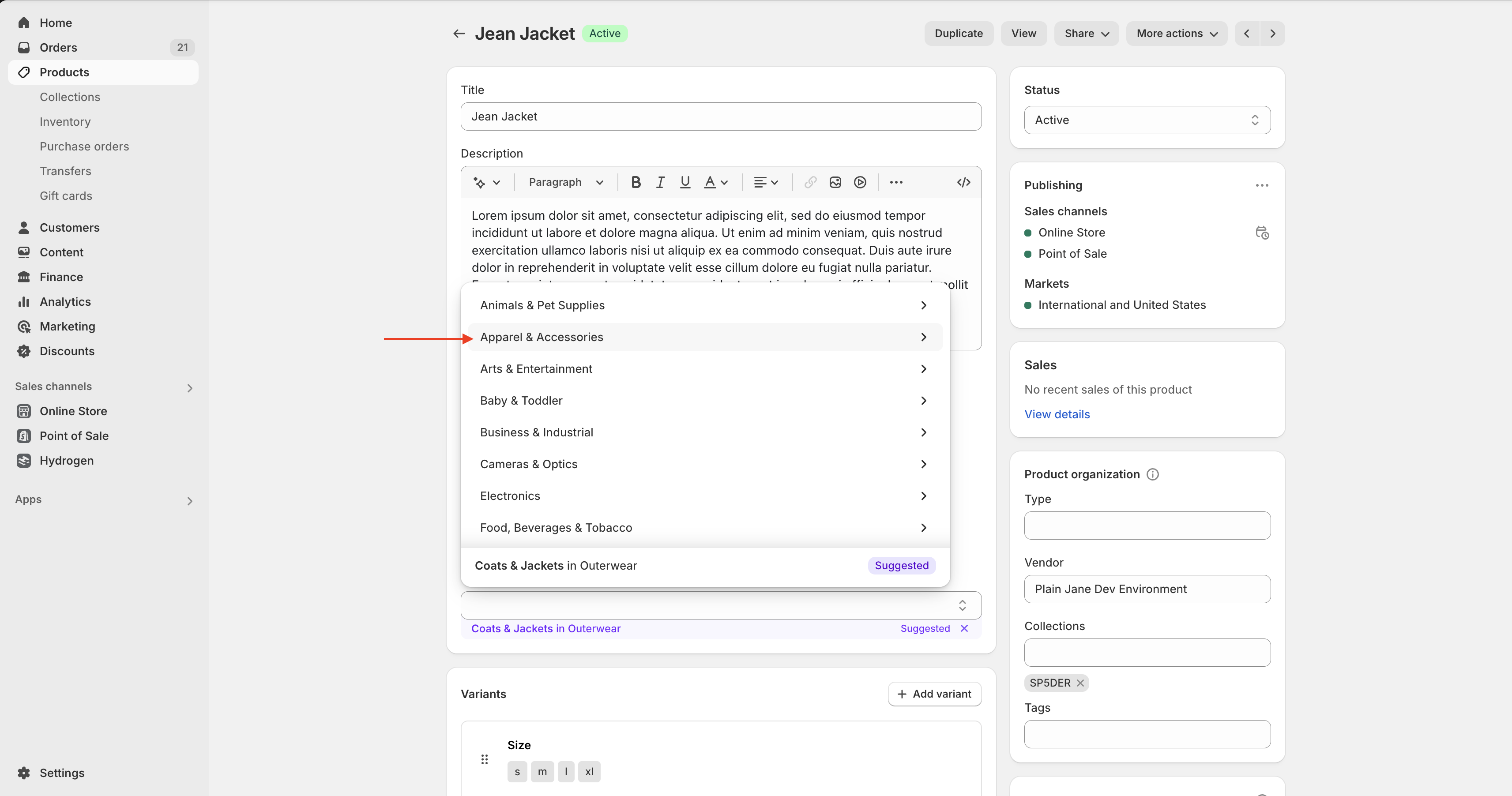
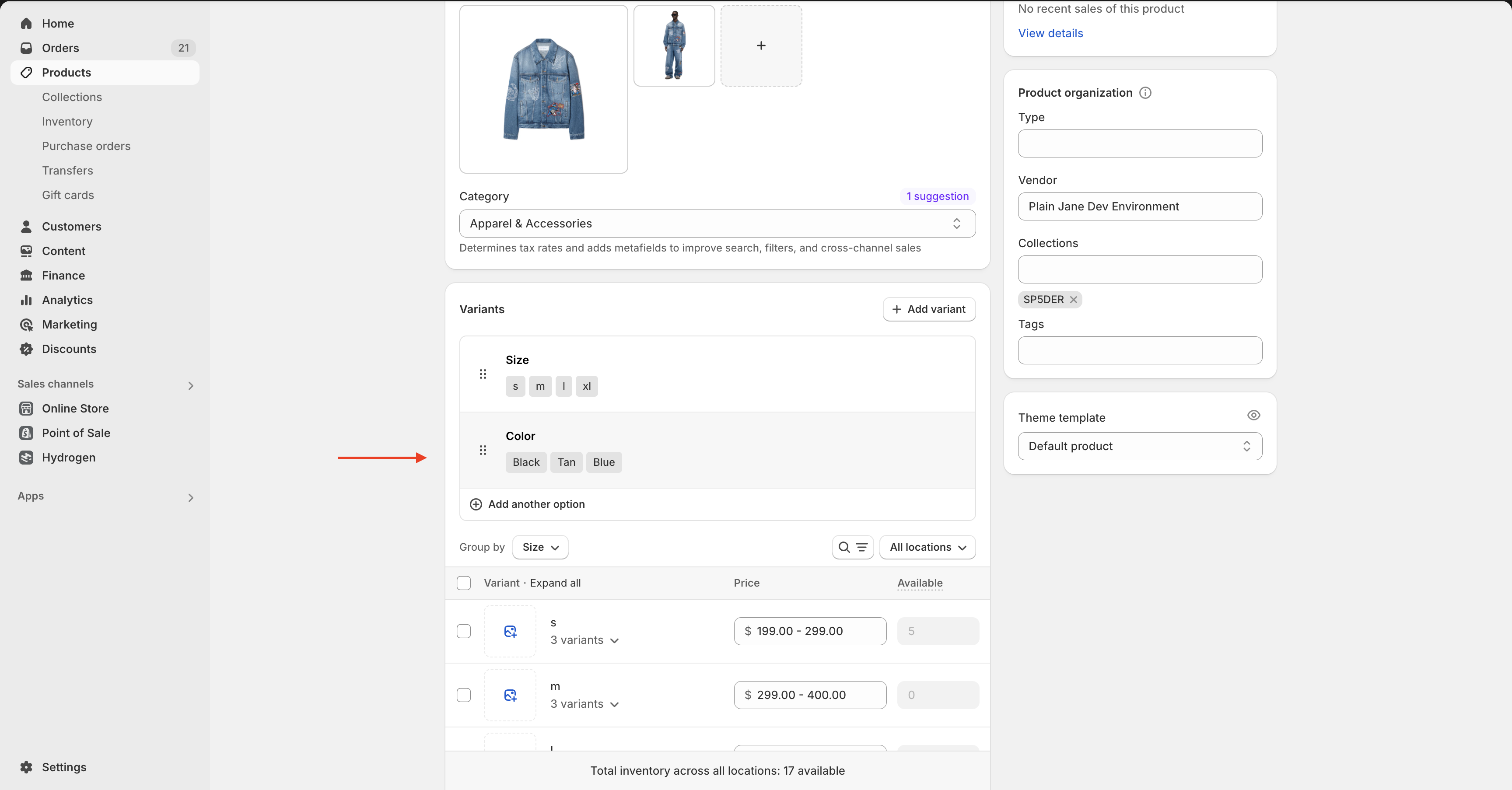
* Scroll to the **Category** section and assign it to a relevant option (e.g. **Apparel & Accessories**).
### 3. Add Color Values to the Category Metafields
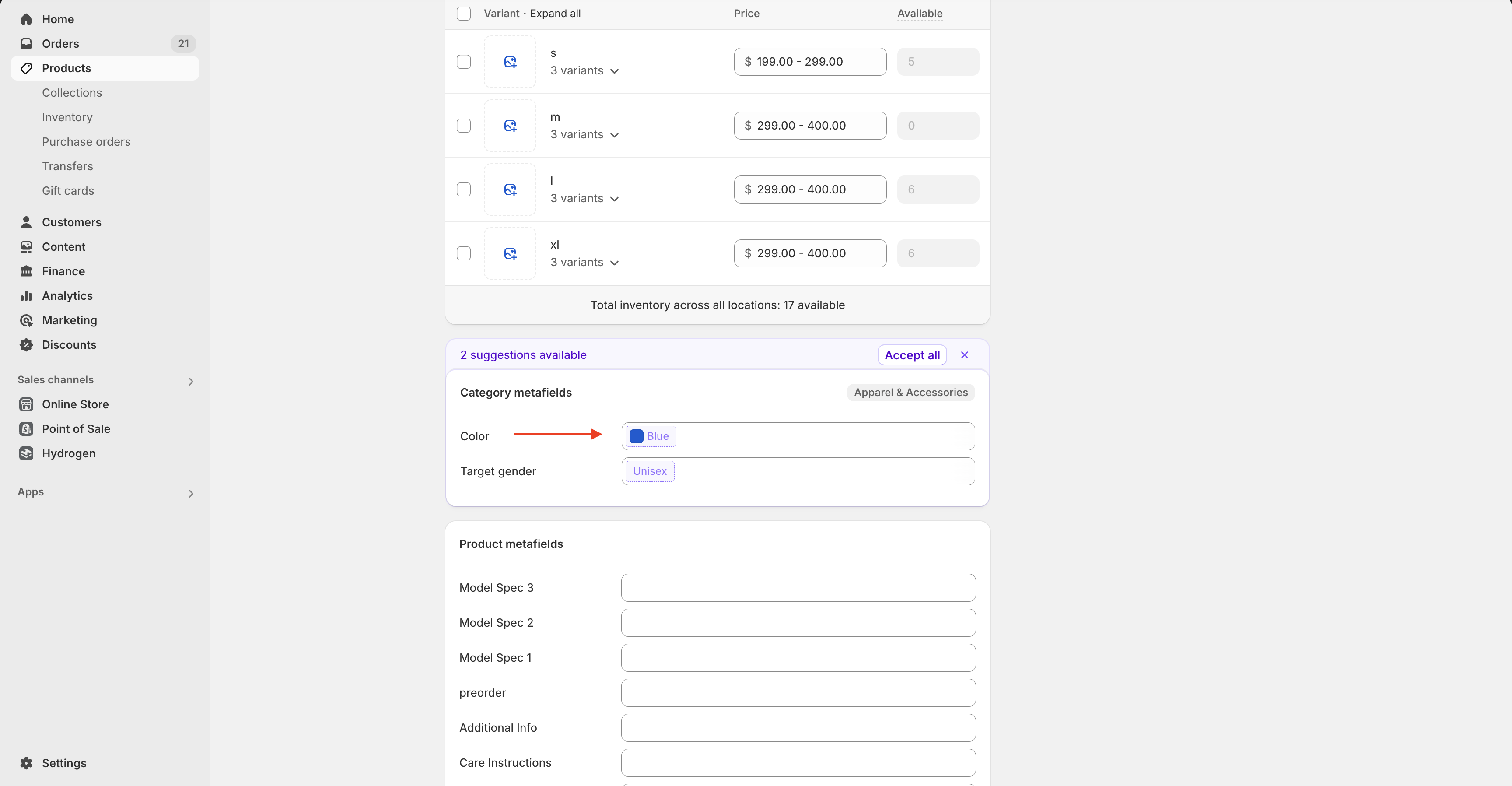
* After assigning a category, scroll down to **Category Metafields**.
* You'll now see options specific to that category (like "Color").
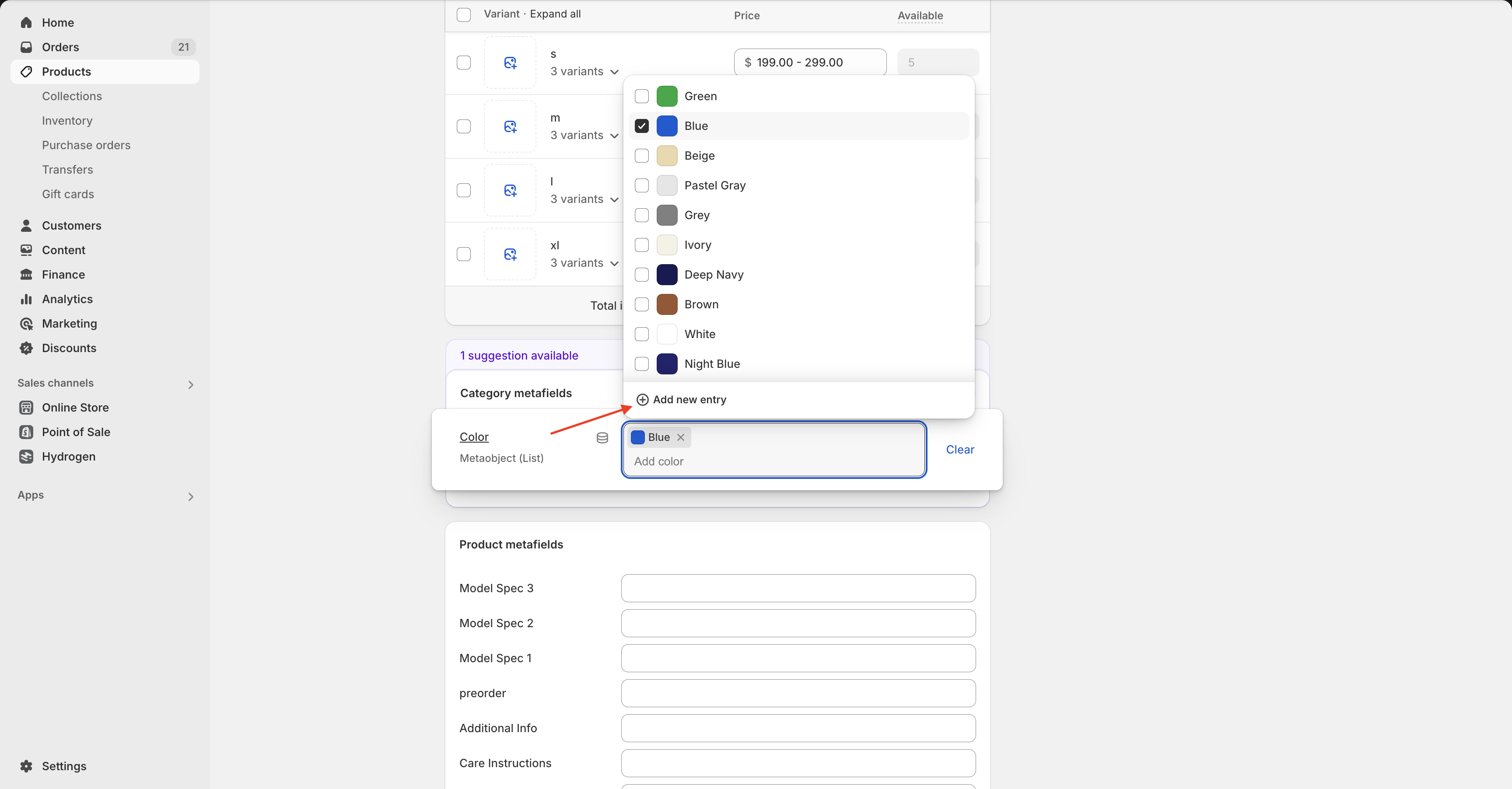
* Click into the **Color** field and either select from the list or choose **Add new entry** to type in a custom color.
### 4. Link the Color Metafield to the Variant Block
* Return to the Theme Editor and click the **Product Variants** block again.
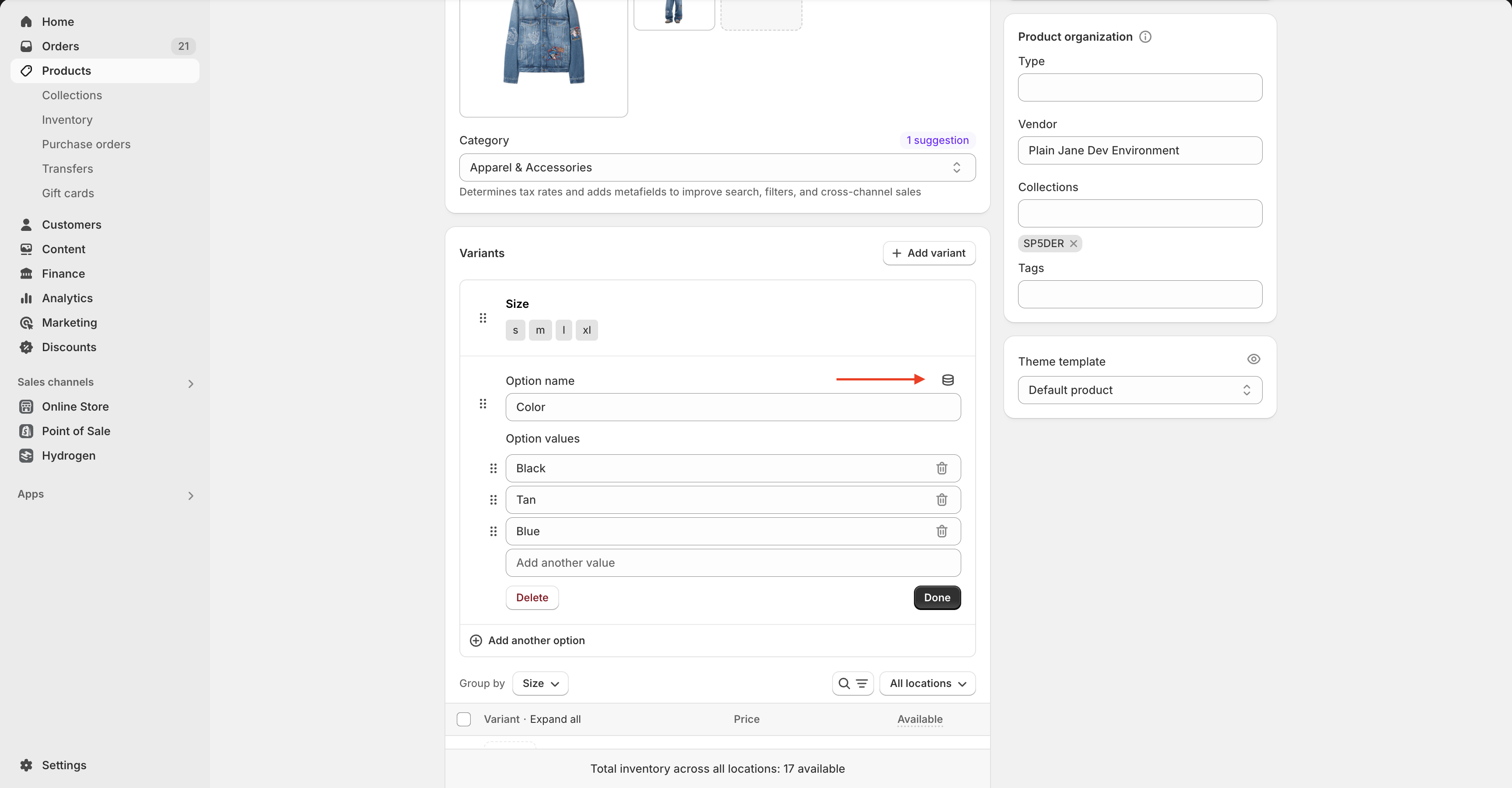
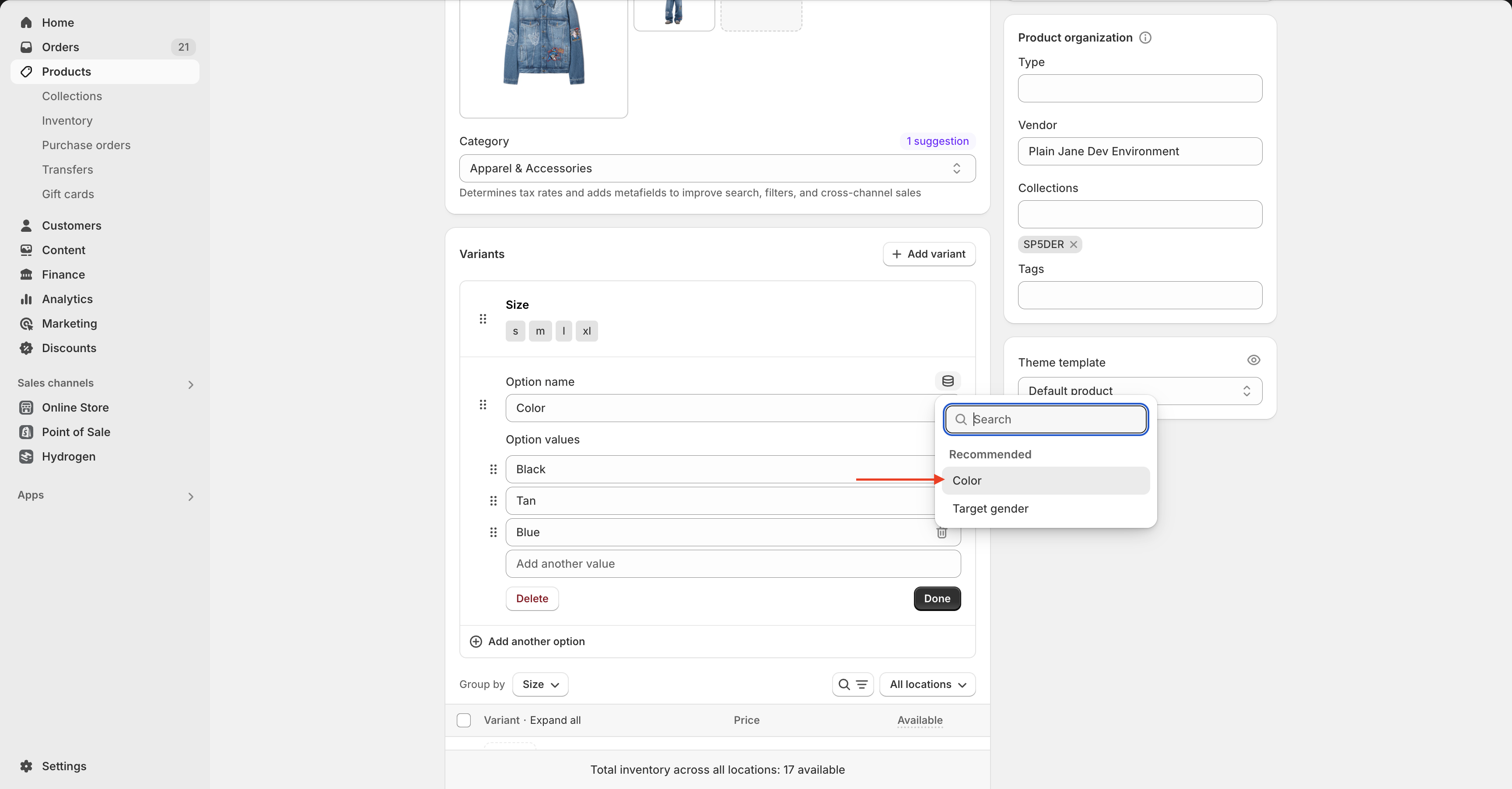
* Locate the **color variant** and click the **dynamic source icon** (stacked circle icon).
* Select the color metafield you added from the dropdown.
### 5. Save Your Changes
* Click **Done** and then **Save** at the top-right of the theme editor.
***
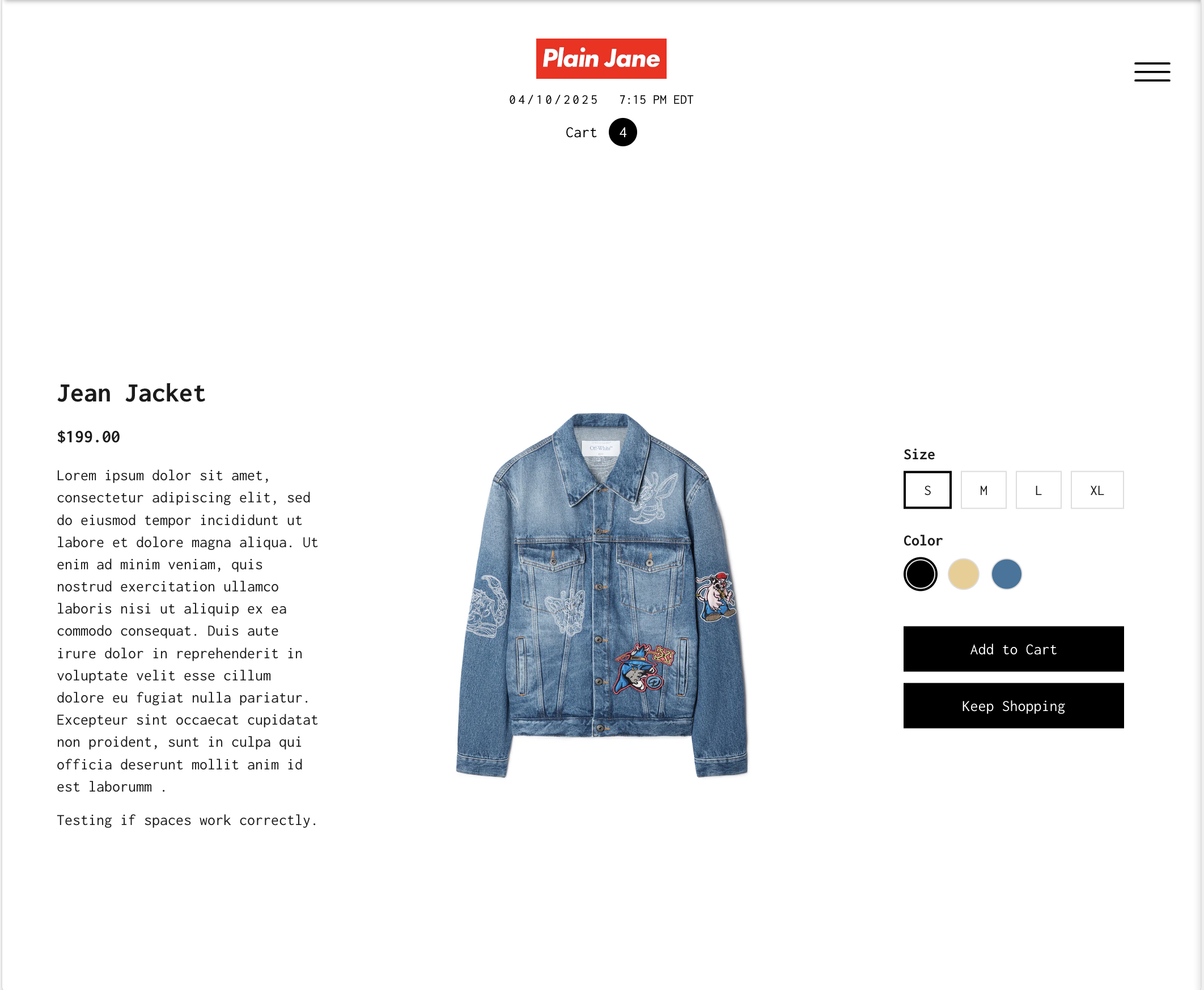
✅ Your product should now display clickable color swatches based on the metafield values you added.
> ⚠️ Warning: Color swatches only appear if your product has a **variant option named “Color”** and it’s matched with the corresponding metafield.
### **Need Help?**
* 💬 **Join our community on Discord:**
* 📧 **Email us at:**
* 💻 **Live chat with us:** Available Monday–Friday, 10AM–6PM EST, directly on our website
---
# Agent Instructions
This documentation is published with GitBook. GitBook is the documentation platform designed so that both humans and AI agents can read, navigate, and reason over technical content effectively. Learn more at gitbook.com.
## Querying This Documentation
If you need additional information that is not directly available in this page, you can query the documentation dynamically by asking a question.
Perform an HTTP GET request on the current page URL with the `ask` query parameter, and the optional `goal` query parameter:
```
GET https://docs.openspaces.design/readme-1/advanced/setting-up-color-swatches.md?ask=&goal=
```
`ask` is the immediate question: it should be specific, self-contained, and written in natural language.
`goal` is optional and describes the broader end goal you are ultimately trying to accomplish on behalf of the user. GitBook uses it to tailor the answer towards what is most useful for that goal.
The response will contain a direct answer to the question and relevant excerpts and sources from the documentation.
Use this mechanism when the answer is not explicitly present in the current page, you need clarification or additional context, or you want to retrieve related documentation sections.