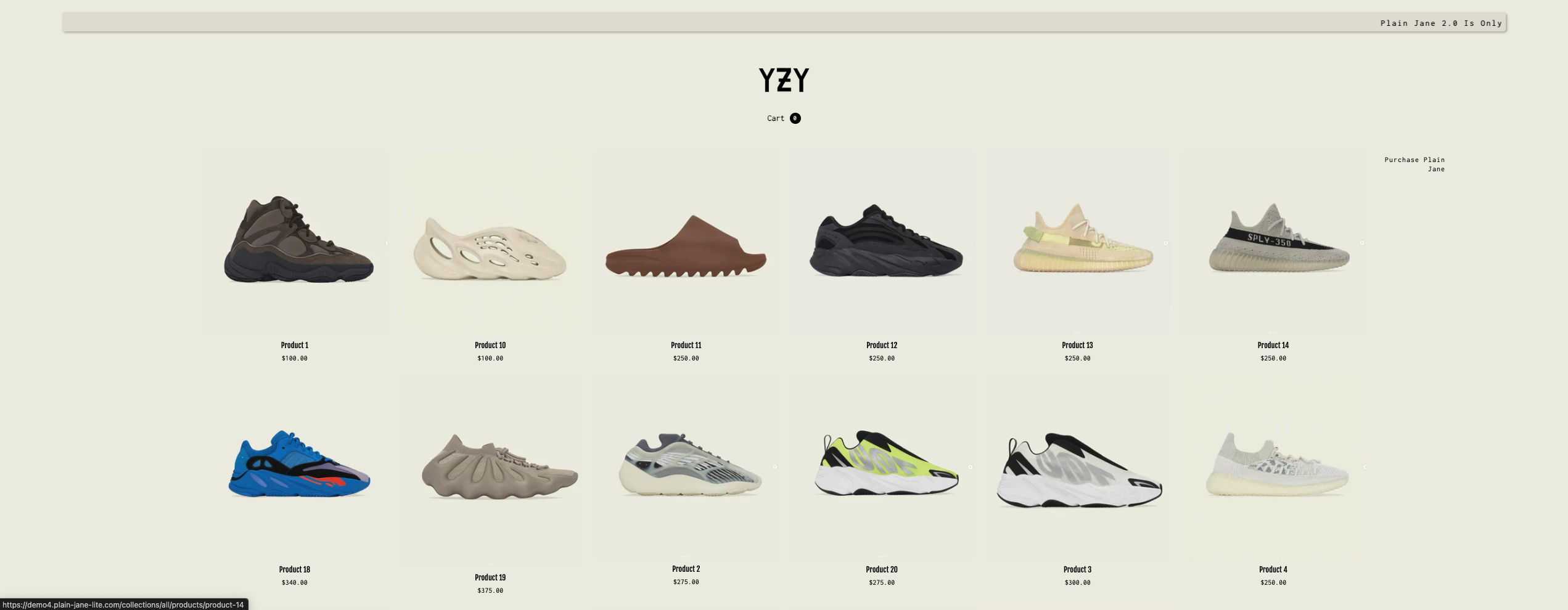
> For the complete documentation index, see [llms.txt](https://docs.openspaces.design/llms.txt). Markdown versions of documentation pages are available by appending `.md` to page URLs; this page is available as [Markdown](https://docs.openspaces.design/readme-1/pages-and-menus/collection-page/classic-collection.md).
# Classic Collection
For Plain Jane Starter, Plain Jane, and Plain Jane Interactive
### What You’ll Learn
* How to enable and configure the Classic Collection section on your Collection page
* How to use built-in product sorting
* How to adjust styling and labels
***
### 1. Add the Classic Collection Section
1. In the Shopify admin, navigate to **Online Store > Themes**.
2. Click **Customize** on the active theme.
3. From the **Collection** page template, add the **Classic Collection** section.
> 💡 Tip: This section supports sorting, product labels (preorder, on sale, out of stock), and detailed display settings.
***
### 2. Add and Configure Sorting Options
You can add multiple sort types like "Featured", "Lowest Priced", and "Newest First".
#### Steps:
1. Inside the **Classic Collection** section settings, add new **Sort Option** blocks.
2. For each one:
* Set the **Option Title** (what your users will see)
* Choose the **Sort By** method (e.g. Featured, Price, Date)
***
### 3. Style the Collection Layout
The Classic Collection section provides many options for layout and typography:
#### Cart & Header Settings:
* Toggle date/time
* Set cart icon colors
#### Collection Menu:
* Menu position and alignment
* Link spacing and font size
* Menu colors (hover, submenu, etc.)
!\[Placeholder for Screenshot - Collection menu styling]
#### Product Titles & Prices:
* Font size and colors
* Compare price styling
* Currency format toggle
***
### 4. Label Controls
Show or hide product labels and change their appearance:
* **Pre-Order**
* **On Sale**
* **Out Of Stock**
You can adjust label background, text colors, and font sizes.
***
### 5. Background & Icons
Control the visual appearance of the section:
* Product background colors and border radius
* Search and sort icon colors and placement
***
### 6. Pagination Settings
Choose between **infinite scroll** or **pagination** and style the navigation elements:
* Set active page colors
* Customize arrow icons and fonts
### **Need Help?**
* 💬 **Join our community on Discord:**
* 📧 **Email us at:**
* 💻 **Live chat with us:** Available Monday–Friday, 10AM–6PM EST, directly on our website
---
# Agent Instructions
This documentation is published with GitBook. GitBook is the documentation platform designed so that both humans and AI agents can read, navigate, and reason over technical content effectively. Learn more at gitbook.com.
## Querying This Documentation
If you need additional information that is not directly available in this page, you can query the documentation by asking a question.
Perform an HTTP GET request on the following URL with the `ask` and `goal` query parameters:
```
GET https://docs.openspaces.design/readme-1/pages-and-menus/collection-page/classic-collection.md?ask=&goal=
```
`ask` is the immediate question: it should be specific, self-contained, and written in natural language.
`goal` is what the user is ultimately trying to achieve, the reason they need the answer. Sharing it helps GitBook give you a better, more relevant answer. A goal is most helpful when it describes the outcome the user wants rather than restating the question. For example, with `ask=how do I create an API token`, a goal like `automate deployments from our CI pipeline` lets GitBook tailor the answer to that use case.
The response will contain a direct answer to the question and relevant excerpts and sources from the documentation.
Use this mechanism when the answer is not explicitly present in the current page, you need clarification or additional context, or you want to retrieve related documentation sections.