> For the complete documentation index, see [llms.txt](https://docs.openspaces.design/llms.txt). Markdown versions of documentation pages are available by appending `.md` to page URLs; this page is available as [Markdown](https://docs.openspaces.design/readme-1/pages-and-menus/homepage-+-menu/center-menu.md).
# Center Menu
> **What You’ll Learn**
>
> * How to build a homepage using the Center Menu layout
> * How to connect your menu links and customize fonts, colors, and alignment
***
### About the Center Menu
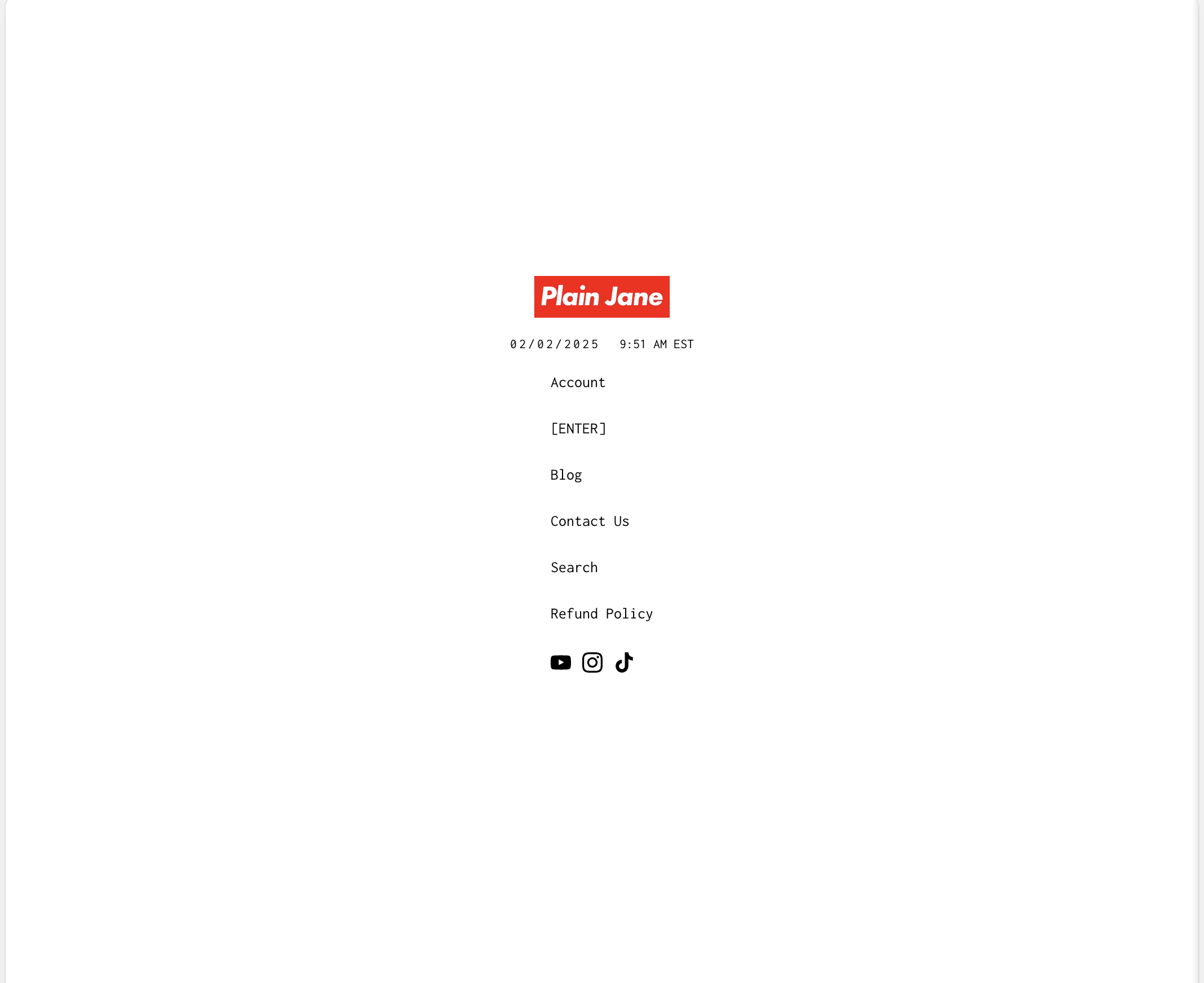
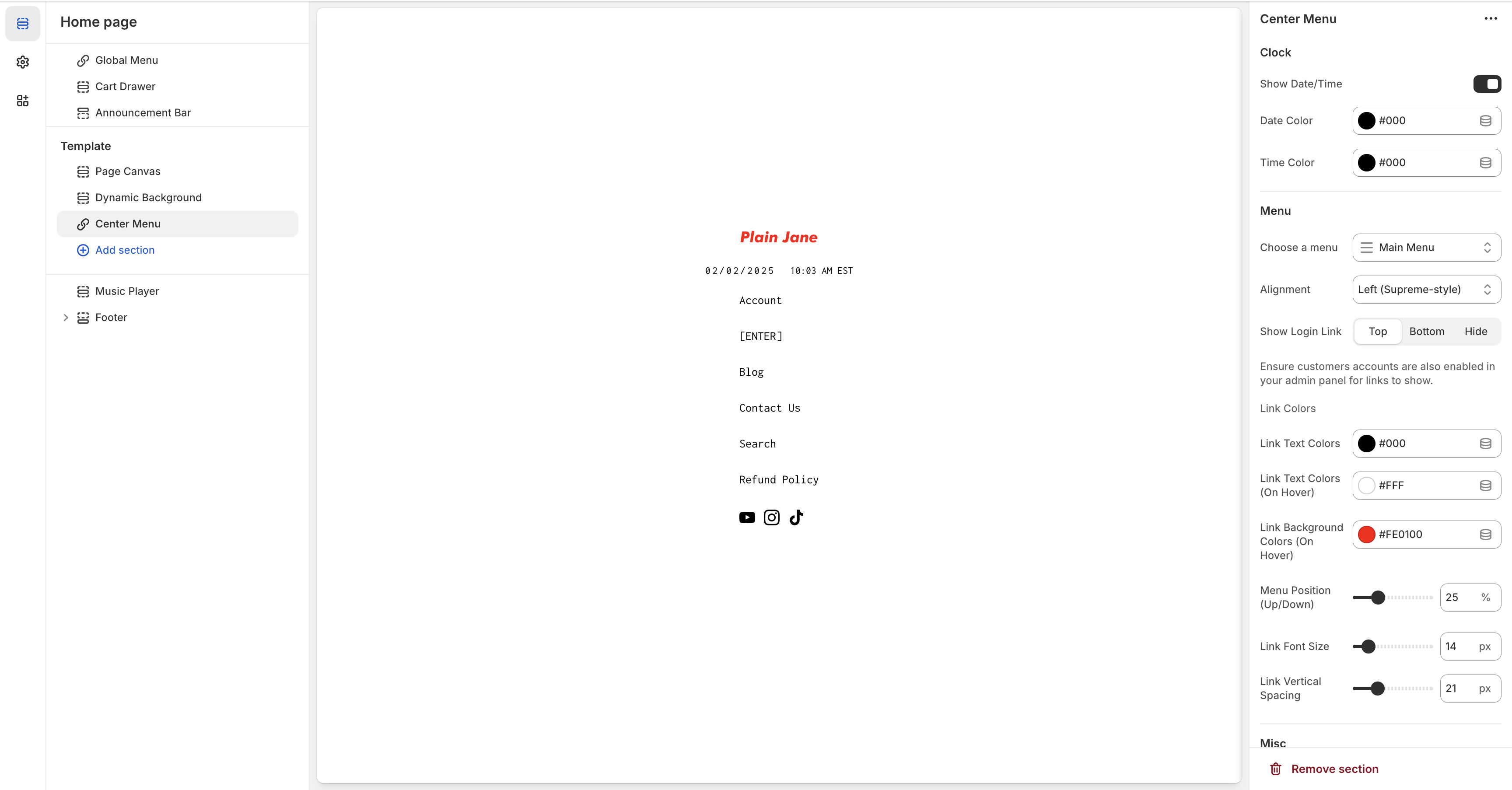
The **Center Menu** layout places your logo and navigation items stacked vertically in the center of the page. It’s inspired by brands like Supreme and is designed for stores that want a high-impact landing experience with minimal scroll.
This layout works best with a strong background (image or video) and minimal homepage content.
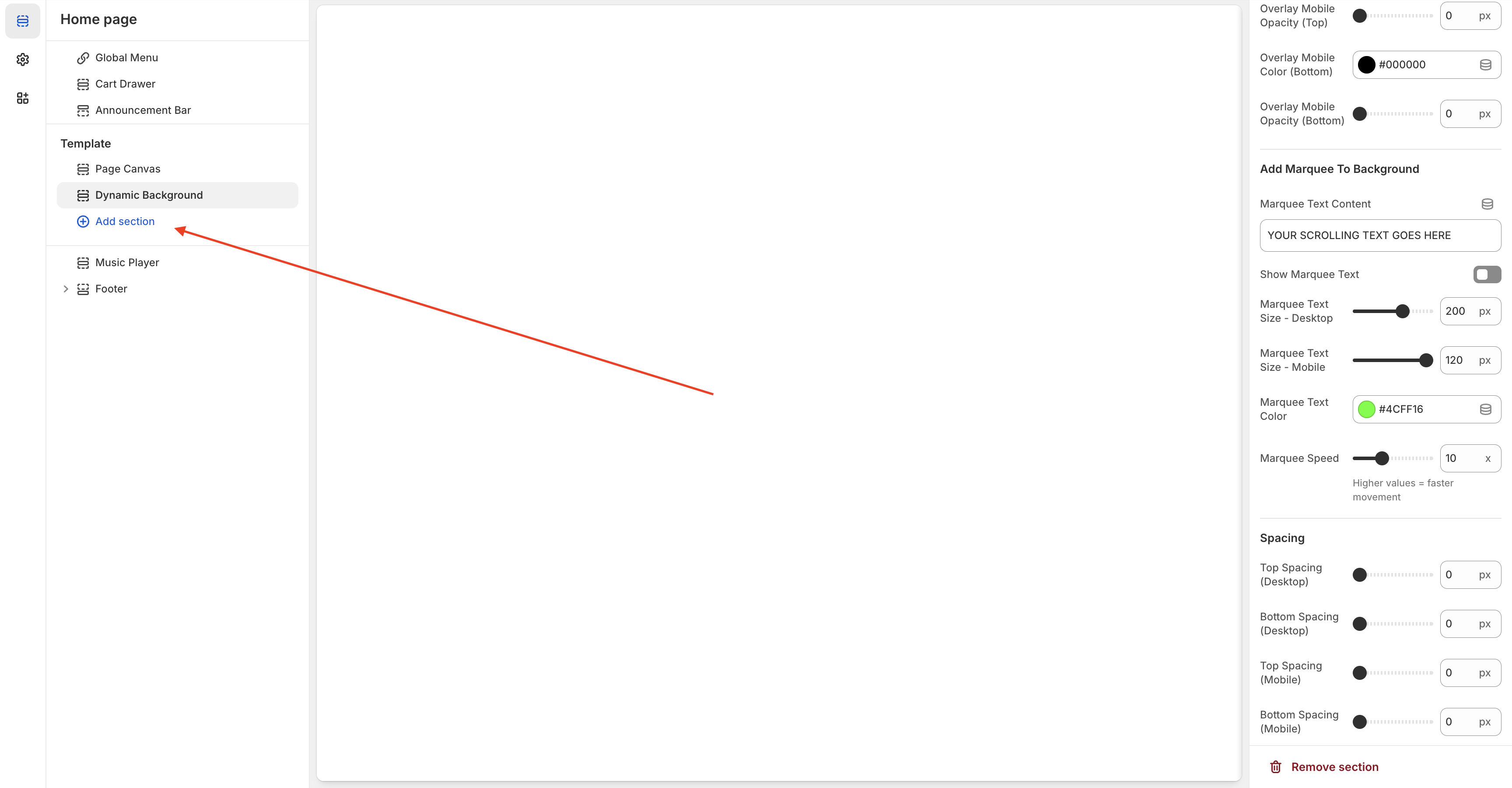
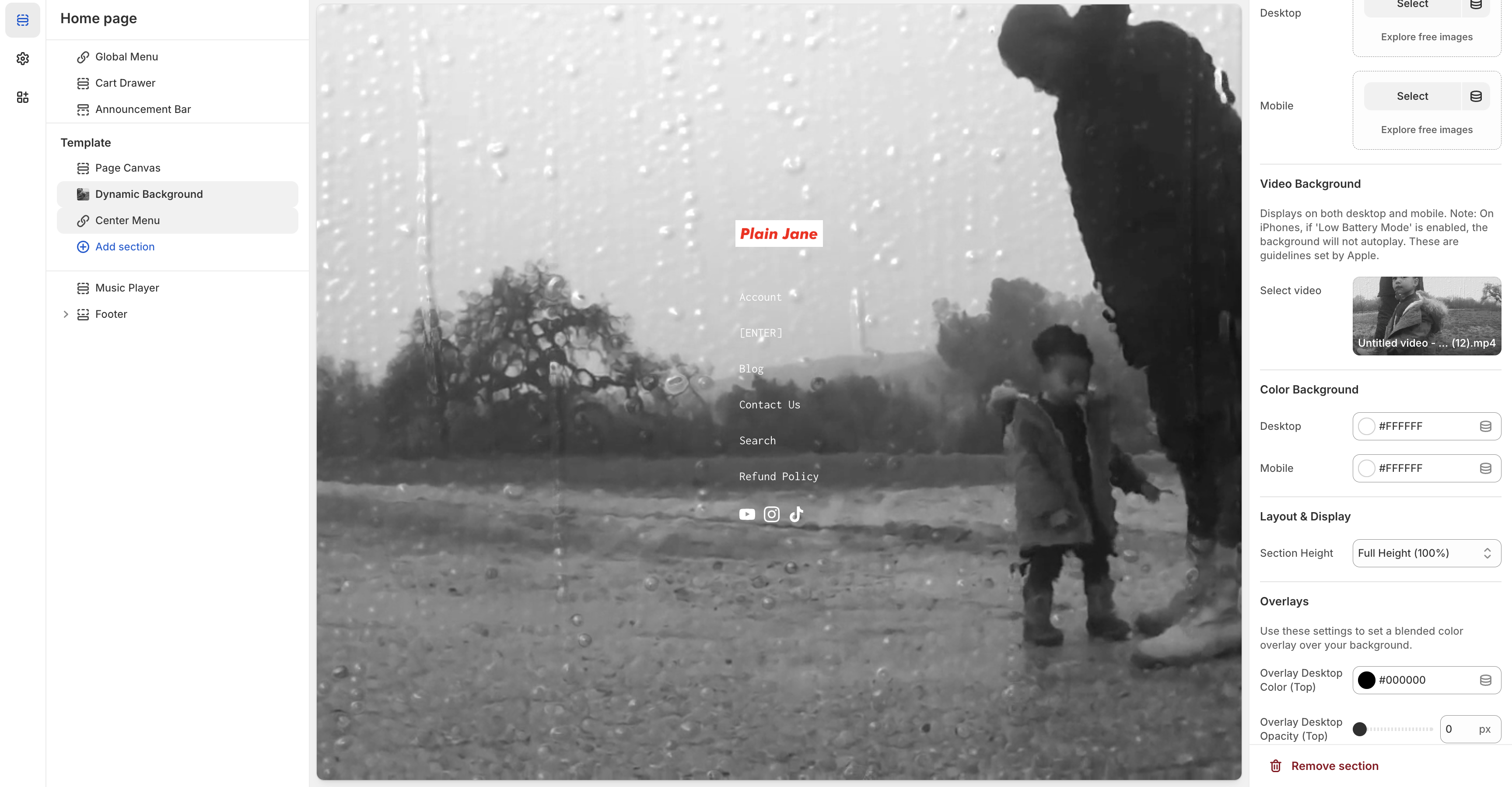
> ⚠️ The `Dynamic Background` section has been deprecated in the latest theme versions. All background customization should now be handled directly within the Center Menu section.
### How to Set It Up
#### 1. Start with a Clean Canvas
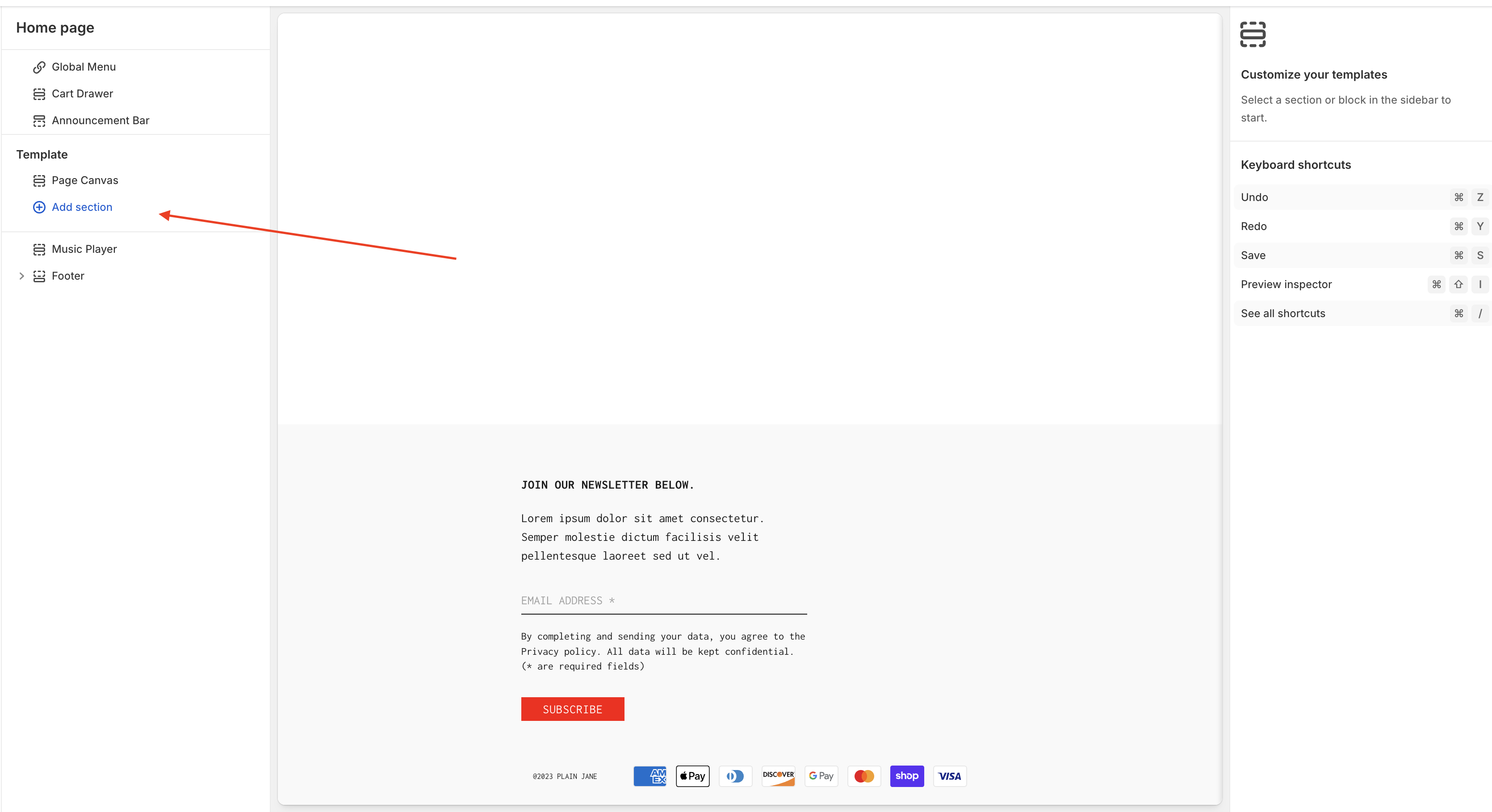
* In the Theme Editor, remove all sections except `Page Canvas`.
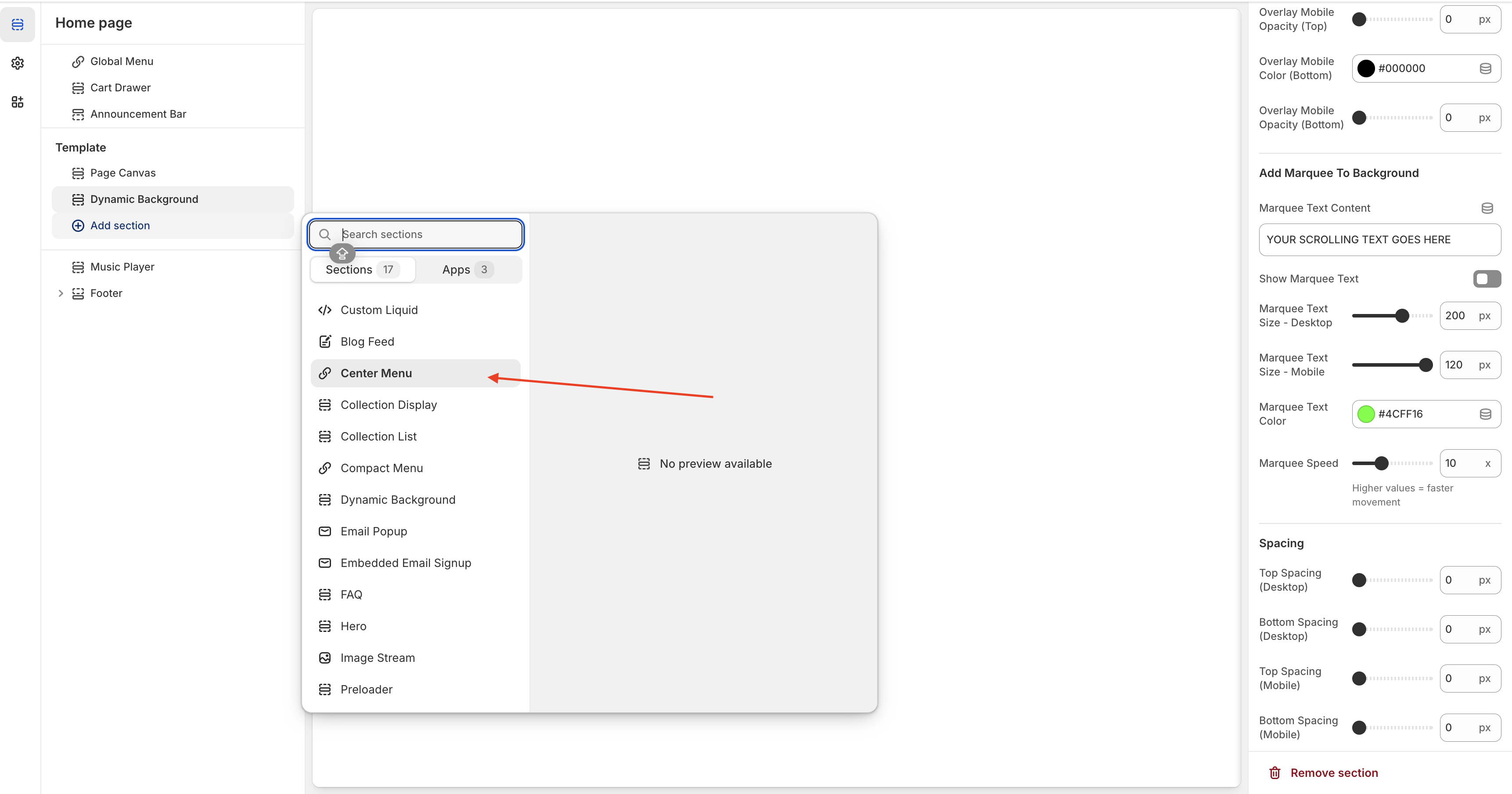
#### 2. Add the Center Menu Section
* Click **Add Section > Center Menu**
* Your logo and menu will appear centered on the page
#### 3. Connect Your Navigation Menu
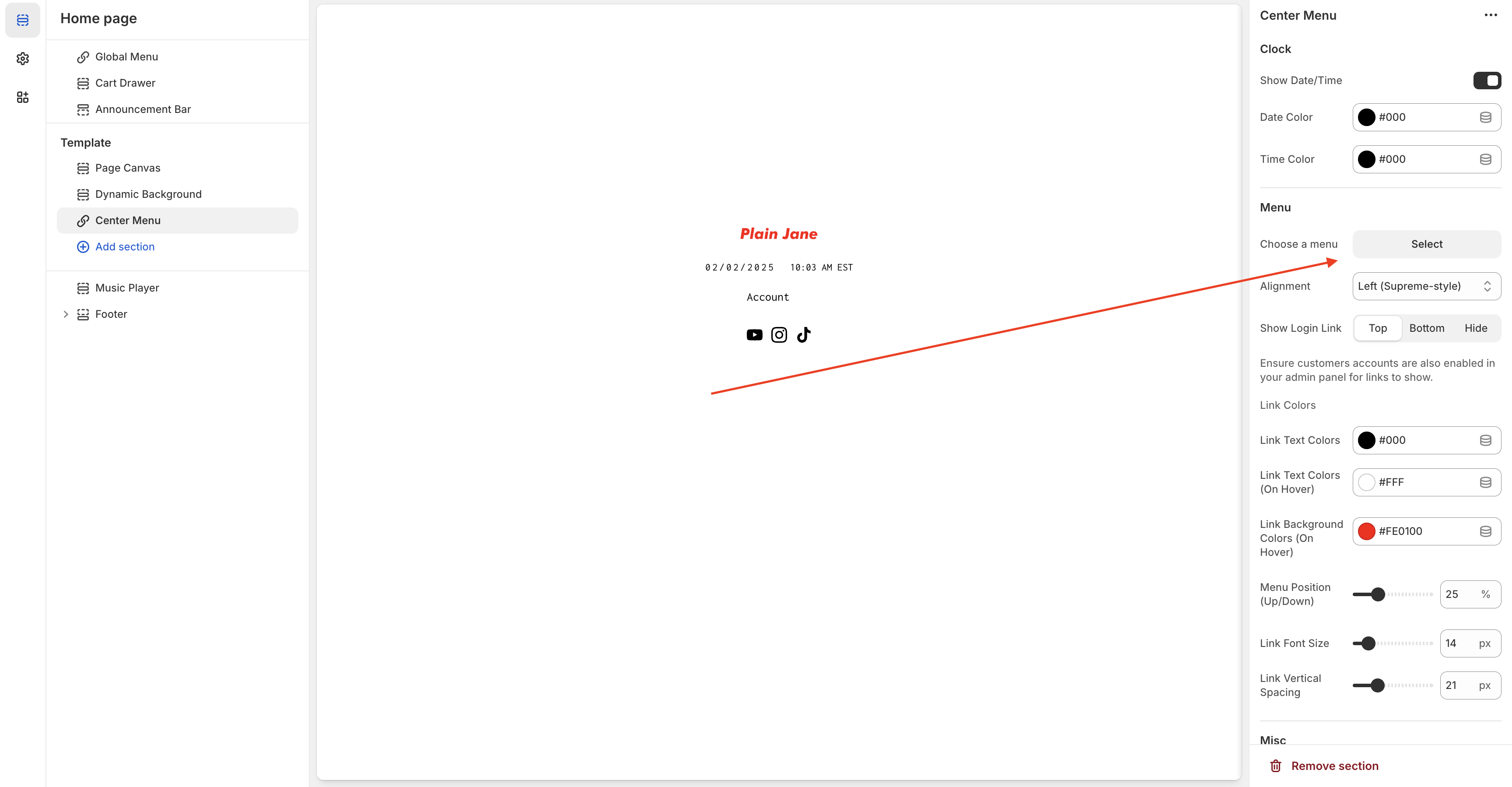
* In the Center Menu settings, select a Shopify menu from the dropdown
* If you don’t have a menu yet:
* Go to **Shopify Admin > Online Store > Navigation** and create one
***
### Customizing the Center Menu
#### Logo Settings
* **Clock**: Enable or disable the live store clock display
* **Date Format**: Choose your preferred date format
* **Time Color**: Customize clock text color
#### Menu Configuration
* **Choose Menu**: Connect your navigation
* **Alignment**: Align your links to the left, center, or right
* **Show Login Link**: Optionally display a customer login button
#### Styling Options
* **Link Text Color**
* **Link Text Color (on hover)**
* **Link Background Color (on hover)**
* **Link Font Size**
* **Link Vertical Spacing**
#### Social Media Icons
* Add links for X, Instagram, TikTok, and more via the Social Media Link block under the section
***
### Background Options
The Center Menu section allows the following background types:
* **Solid Color**: Set different colors for desktop and mobile
* **Image**: Upload background images per device
* **Slideshow**: Add up to 3 rotating images
* **Video**: Add a looping video background (Note: videos may not autoplay on iOS with Low Power Mode enabled)
#### Additional Settings
* **Section Height**: Set to Full Height or adjust manually
* **Overlay Options**:
* Control top and bottom overlay colors and opacity
* Separate controls for desktop and mobile
> 💡 Tip: Use overlays to help white or light text stand out against background images or video.
***
### When to Use This Layout
Use the Center Menu layout when:
* You want a bold, minimal homepage
* You want the first interaction to be a simple menu with high visual impact
* You want to drive traffic directly into collections or product pages
***
### **Need Help?**
* 💬 **Join our community on Discord:**
* 📧 **Email us at:**
* 💻 **Live chat with us:** Available Monday–Friday, 10AM–6PM EST, directly on our website
---
# Agent Instructions
This documentation is published with GitBook. GitBook is the documentation platform designed so that both humans and AI agents can read, navigate, and reason over technical content effectively. Learn more at gitbook.com.
## Querying This Documentation
If you need additional information that is not directly available in this page, you can query the documentation dynamically by asking a question.
Perform an HTTP GET request on the current page URL with the `ask` query parameter, and the optional `goal` query parameter:
```
GET https://docs.openspaces.design/readme-1/pages-and-menus/homepage-+-menu/center-menu.md?ask=&goal=
```
`ask` is the immediate question: it should be specific, self-contained, and written in natural language.
`goal` is optional and describes the broader end goal you are ultimately trying to accomplish on behalf of the user. GitBook uses it to tailor the answer towards what is most useful for that goal.
The response will contain a direct answer to the question and relevant excerpts and sources from the documentation.
Use this mechanism when the answer is not explicitly present in the current page, you need clarification or additional context, or you want to retrieve related documentation sections.