> For the complete documentation index, see [llms.txt](https://docs.openspaces.design/llms.txt). Markdown versions of documentation pages are available by appending `.md` to page URLs; this page is available as [Markdown](https://docs.openspaces.design/readme-1/sections-and-features/email-signup-popup.md).
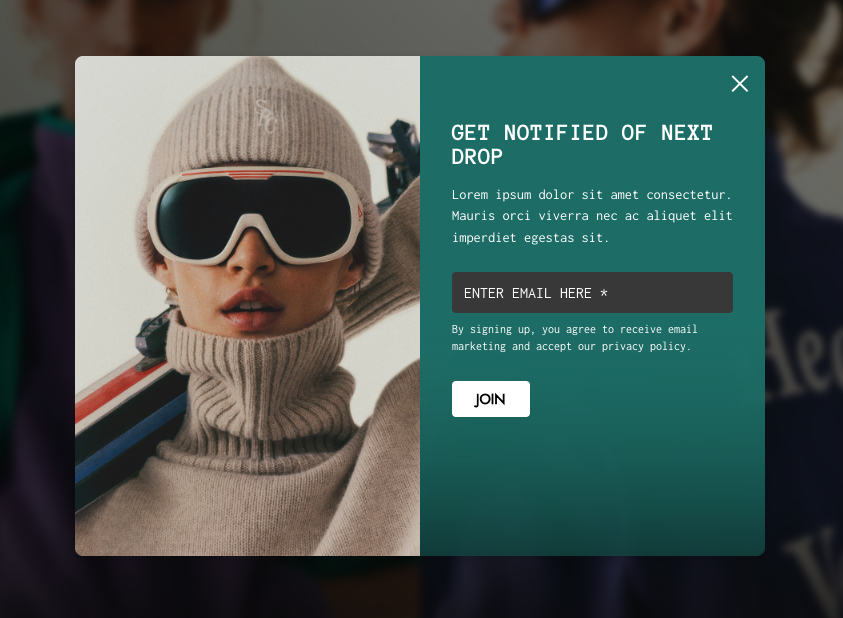
# Email Signup (Popup)
> **What You’ll Learn**
>
> * How to enable and customize the email signup popup
> * Which theme version supports this feature
> * How to collect and export email signups to your email marketing tool
***
### **Access the Theme Editor**
1. From your Shopify Admin, go to **Online Store > Themes**.
2. Find your Plain Jane Lite theme and click **Customize**.
3. Inside the Theme Editor, click the **Theme Settings** icon (paintbrush).
***
### **Enable and Configure the Email Popup**
1. In **Theme Settings**, select **Email Pop-up**.
2. Configure the following options:
#### **Visibility**
* **Disable Email Pop-up**: Check this box to turn off the popup completely.
> 💡 Tip: Disable this if you're using Klaviyo, Mailchimp, or another email marketing tool with its own popup.
#### **Visual Customizations**
* **Show Logo**: Upload your brand logo.\
\&#xNAN;*If left blank, the default "Dummy Supreme" logo will display.*
* **Background Image**: Optional. Adds a visual background to the popup.
* **Overlay Color**: Background layer behind the popup (e.g., white, red).
* **Popup Background Color**: Color shown if no background image is set.
* **Border Color**: Optional border around the popup.
* **Exit Button Color**: Customize the close ("X") button.
* **Inner Background Color**: Background for the form area (e.g., behind text and inputs).
#### **Text Fields**
All of the following fields are customizable:
* **Header Text**
* **Description**
* **Success Message**
* **Submit Button Text**
#### **Input Styling**
* **Placeholder Text Color**: Text color before the user types.
* **Input Text Color**: Text color while typing.
* **Submit Button Background and Text Color**
* **Popup Opacity**: Controls the transparency of the overlay.
***
### **Save and Preview Your Popup**
1. Click **Save** in the top right.
2. To test the popup:
* Open your live store in a **new browser tab**.
* This resets session data so the popup reappears.
> ⚠️ **Popup not showing?** The theme prevents the popup from reappearing repeatedly in the same tab. Use a new tab for each test.
***
### **Where Do Collected Emails Go?**
All signups from the popup are stored in your Shopify **Customers** section:
1. Go to **Shopify Admin > Customers**.
2. You'll see new entries listed as customers with **zero orders**.
3. Click **Export** to download the list:
* Choose "All Customers" or current page
* Import to Klaviyo, Mailchimp, MailerLite, etc.
### How to Filter for Zero-Order Signups
If you want to target only new signups who haven't made a purchase yet (ideal for welcome flows or early access):
1. Go to **Shopify Admin > Customers**
2. Click **Filters**
3. Select:
* **Tagged with** → `Email subscriber`
* **Number of orders** → `is equal to` → `0`
4. Save this filter view for quick access later
> 💡 Tip: This is especially helpful if you’re collecting signups on a store with existing customers and want to separate new leads.
***
### **Need Help?**
* 💬 **Join our community on Discord:**
* 📧 **Email us at:**
* 💻 **Live chat with us:** Available Monday–Friday, 10AM–6PM EST, directly on our website
---
# Agent Instructions
This documentation is published with GitBook. GitBook is the documentation platform designed so that both humans and AI agents can read, navigate, and reason over technical content effectively. Learn more at gitbook.com.
## Querying This Documentation
If you need additional information that is not directly available in this page, you can query the documentation dynamically by asking a question.
Perform an HTTP GET request on the current page URL with the `ask` query parameter, and the optional `goal` query parameter:
```
GET https://docs.openspaces.design/readme-1/sections-and-features/email-signup-popup.md?ask=&goal=
```
`ask` is the immediate question: it should be specific, self-contained, and written in natural language.
`goal` is optional and describes the broader end goal you are ultimately trying to accomplish on behalf of the user. GitBook uses it to tailor the answer towards what is most useful for that goal.
The response will contain a direct answer to the question and relevant excerpts and sources from the documentation.
Use this mechanism when the answer is not explicitly present in the current page, you need clarification or additional context, or you want to retrieve related documentation sections.