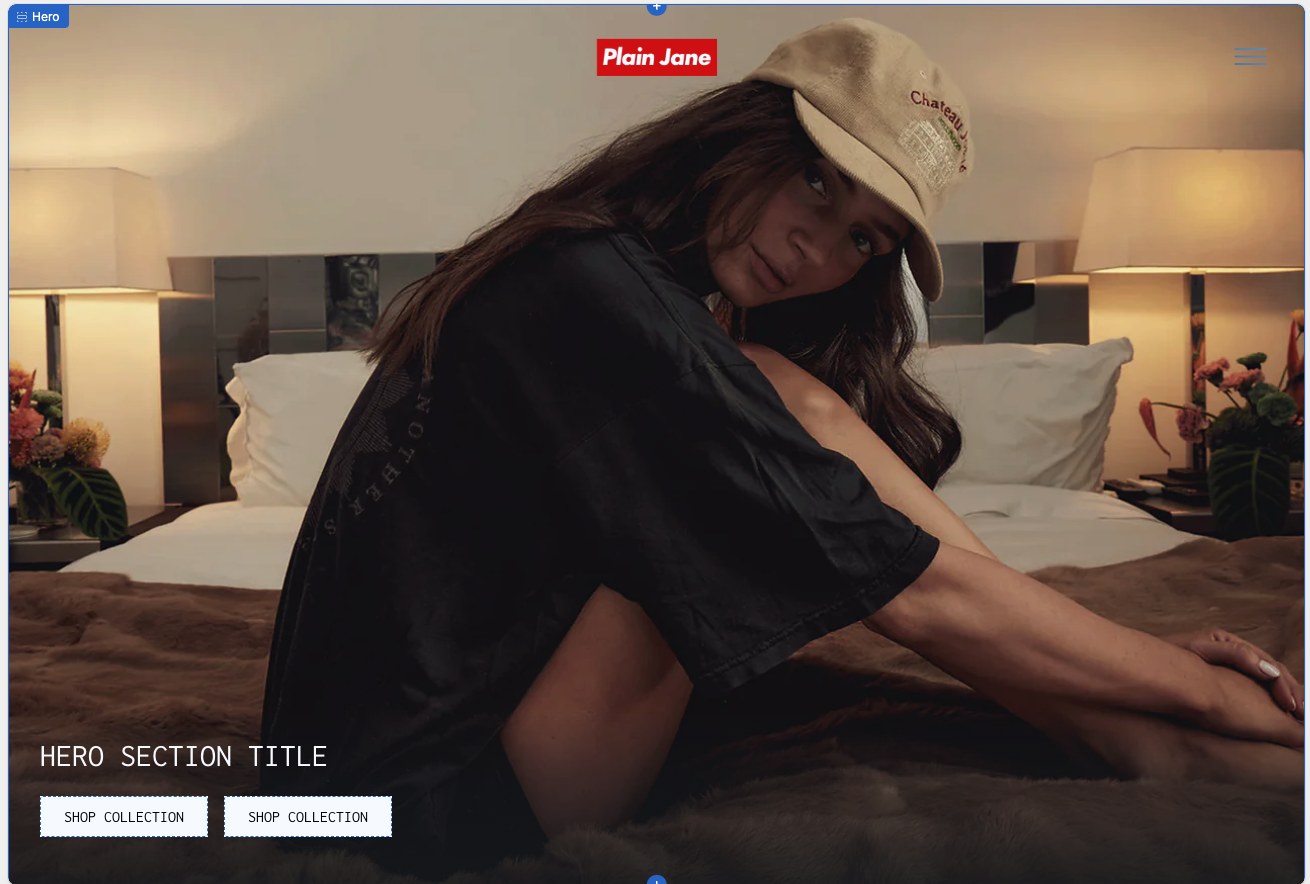
> For the complete documentation index, see [llms.txt](https://docs.openspaces.design/llms.txt). Markdown versions of documentation pages are available by appending `.md` to page URLs; this page is available as [Markdown](https://docs.openspaces.design/readme-1/sections-and-features/hero-section.md).
# Hero Section
### **What You’ll Learn**
* How to add and customize the Hero section
* How to switch between image and video backgrounds
* How to configure title, overlays, and spacing
* How to add and style up to 2 call-to-action buttons
***
### 🧩 Section Overview
The Hero section in the Plain Jane theme is a full-width banner used to create a bold first impression on your storefront. You can feature an image or autoplaying video with a title and up to two call-to-action buttons.
> 💡 Tip: For best results, use high-quality imagery or short, muted video loops under 10MB.
***
### ⚙️ How to Add and Customize the Hero Section
#### 1. Add the Section
* From the Shopify **Theme Editor**, open your **Home page**
* Click **Add Section** and choose **Hero**
* Drag it to the top of your layout (optional)
#### 2. Upload Background Media
Under **Content & Data**:
* **Media Type**: Choose `Image` or `Video`
* **Image**: Upload or select your **First Image**
* **Second Image (Optional)**: Used for mobile fallback if enabled
* **Video**: Upload `.mp4` format only; autoplay is muted
> ⚠️ Warning: On iPhones in Low Power Mode, video autoplay may be disabled.
***
### 🖋️ Text and Layout Settings
#### Title
* **Hero Title**: Add your message (e.g., “NEW ARRIVALS”)
#### Layout & Display
* **Hero Height**: Choose from `50%`, `75%`, or `100% of viewport height`
* **Use Image Instead of Video on Mobile**: Toggle ON to override mobile video
* **Show only one image on mobile**: Helps control layout and speed
* **Mobile Image Selection**: Choose which image to display
#### Content Position
* Set the text and buttons to:
* `Top Left`
* `Top Center`
* `Center`
* `Bottom Left`
* `Bottom Right`
***
### 🎨 Typography, Colors & Styling
#### Typography
* **Font Weight**: Choose between `Regular` and `Bold`
#### Colors
* **Title Color**: Set custom hex color (e.g., `#FFFFFF`)
#### Overlays
* **Top/Bottom Overlays**: Optional gradients for readability
* Set:
* Overlay Color
* Overlay Height (%) using slider
> 💡 Tip: Use a semi-transparent black (`#000000` at 40%) to make text stand out.
***
### 📦 Spacing
Customize spacing separately for desktop and mobile:
```plaintext
plaintextCopyEditTop Spacing (Desktop): 0px
Bottom Spacing (Desktop): 20px
Top Spacing (Mobile): 0px
Bottom Spacing (Mobile): 16px
```
***
### 🔘 Buttons
You can add up to **two buttons**. Each button includes:
#### Content & Data
* **Button Text**: Example: `SHOP COLLECTION`
* **Button Link**: Paste any internal or external URL
#### Colors
* **Background Color**: (e.g., `#FFFFFF`)
* **Text Color**: (e.g., `#000000`)
#### Styling
* **Round Corners**: Adjust border radius in `px`
> ⚠️ Button limit: You can only add 2 buttons per Hero section.
***
### 🧩 Section Tree Example
```
Hero
├── Button
└── Button
```
***
### **Need Help?**
* 💬 **Join our community on Discord:**
* 📧 **Email us at:**
* 💻 **Live chat with us:** Available Monday–Friday, 10AM–6PM EST, directly on our website
---
# Agent Instructions
This documentation is published with GitBook. GitBook is the documentation platform designed so that both humans and AI agents can read, navigate, and reason over technical content effectively. Learn more at gitbook.com.
## Querying This Documentation
If you need additional information that is not directly available in this page, you can query the documentation dynamically by asking a question.
Perform an HTTP GET request on the current page URL with the `ask` query parameter, and the optional `goal` query parameter:
```
GET https://docs.openspaces.design/readme-1/sections-and-features/hero-section.md?ask=&goal=
```
`ask` is the immediate question: it should be specific, self-contained, and written in natural language.
`goal` is optional and describes the broader end goal you are ultimately trying to accomplish on behalf of the user. GitBook uses it to tailor the answer towards what is most useful for that goal.
The response will contain a direct answer to the question and relevant excerpts and sources from the documentation.
Use this mechanism when the answer is not explicitly present in the current page, you need clarification or additional context, or you want to retrieve related documentation sections.