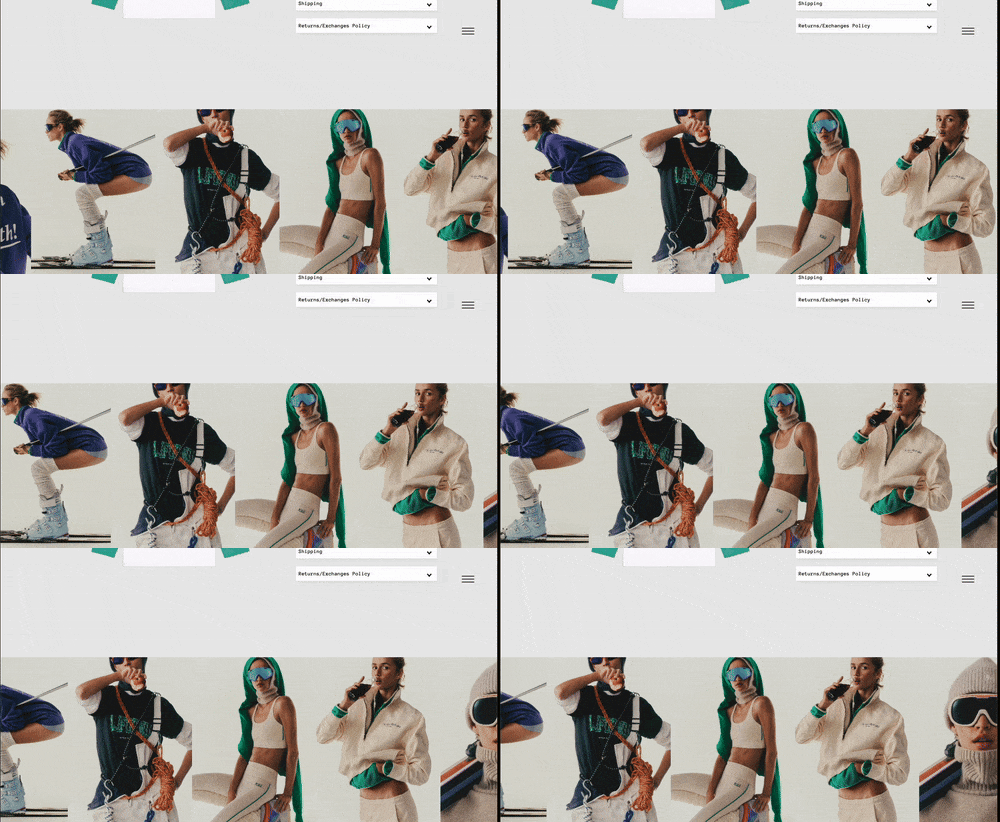
> For the complete documentation index, see [llms.txt](https://docs.openspaces.design/llms.txt). Markdown versions of documentation pages are available by appending `.md` to page URLs; this page is available as [Markdown](https://docs.openspaces.design/readme-1/sections-and-features/image-stream-section.md).
# Image Stream Section
### **What You’ll Learn**
* How to create a horizontally scrolling image gallery
* How to control scroll speed, direction, and spacing
* How to add captions and links to images
* How to adjust layout and typography for desktop and mobile
***
### 🧩 Section Overview
The Image Stream section is a horizontally scrolling row of images, great for displaying campaign shots, editorial looks, or brand highlights. It adds motion to your storefront and can be set to scroll automatically.
***
### How to Add the Section
1. In the **Shopify Theme Editor**, click **Add section**
2. Select **Image Stream**
3. Drag the section to your preferred location on the page
***
### Adding Images
Each image is added using a block called **Image**.
To add an image:
* Click **Add Block**, then select **Image**
* Upload or choose your image
* (Optional) Add a **Caption** – this appears below the image
> 💡 Tip: Keep captions short for a clean layout
***
### Section Settings
#### Content & Links
* **Section Title**: Add a heading for the section (optional)
* **View Link URL**: Add a link to a product, collection, or page
* **View Link Text**: This is the button text, like "SHOP"
#### Colors
* **Background Color**: Set the background behind the stream
* **Section Title Color**: Set the heading and view link color
***
### Layout & Display
* **Images per row on desktop**: Choose how many images show across (2 to 6)
* **Image aspect ratio**: Controls image shape (e.g., Portrait, Square, Landscape)
* **Height Mode**:
* *Responsive*: Images scale based on aspect ratio
* *Full Height*: Section fills the screen height (title and buttons are hidden)
Additional options:
* **Reverse Stream Direction**: Enable to scroll right-to-left
* **Hide on mobile**: Hides the entire section on phones
* **Auto-scroll speed**: Controls how fast images move (measured in pixels per second)
> ⚠️ Slower scroll speeds look smoother and are easier to follow
***
### Typography Settings
* **Section Header Size (Desktop)**: Default is 16px
* **Section Header Size (Mobile)**: Default is 14px
* **Bold Section Title**: Toggle on/off
* **Bold View Link**: Toggle on/off
***
### Spacing Settings
You can adjust spacing for both desktop and mobile.
**Desktop Spacing**
* Top: 20px
* Bottom: 20px
**Mobile Spacing**
* Top: 16px
* Bottom: 16px
**Gap Between Images**
* Choose from: None, Small, Medium, or Large
> 💡 Tip: Use "None" for a seamless look, or add spacing to let each image breathe
***
### Section Structure Example
The section includes multiple image blocks, each with its own image and caption.
Example:
* Image – Look 1
* Image – Look 2
* Image – Look 3
* Image – Look 4
***
### **Need Help?**
* 💬 **Join our community on Discord:**
* 📧 **Email us at:**
* 💻 **Live chat with us:** Available Monday–Friday, 10AM–6PM EST, directly on our website
---
# Agent Instructions
This documentation is published with GitBook. GitBook is the documentation platform designed so that both humans and AI agents can read, navigate, and reason over technical content effectively. Learn more at gitbook.com.
## Querying This Documentation
If you need additional information that is not directly available in this page, you can query the documentation dynamically by asking a question.
Perform an HTTP GET request on the current page URL with the `ask` query parameter, and the optional `goal` query parameter:
```
GET https://docs.openspaces.design/readme-1/sections-and-features/image-stream-section.md?ask=&goal=
```
`ask` is the immediate question: it should be specific, self-contained, and written in natural language.
`goal` is optional and describes the broader end goal you are ultimately trying to accomplish on behalf of the user. GitBook uses it to tailor the answer towards what is most useful for that goal.
The response will contain a direct answer to the question and relevant excerpts and sources from the documentation.
Use this mechanism when the answer is not explicitly present in the current page, you need clarification or additional context, or you want to retrieve related documentation sections.