> For the complete documentation index, see [llms.txt](https://docs.openspaces.design/llms.txt). Markdown versions of documentation pages are available by appending `.md` to page URLs; this page is available as [Markdown](https://docs.openspaces.design/readme-1/sections-and-features/product-carousel-section.md).
# Product Carousel Section
### **What You’ll Learn**
* How to display products in a horizontally scrollable layout
* How to customize product labels, pricing, and badges
* How to adjust product spacing, typography, and colors
* How to set desktop and mobile layout preferences
***
### 🧩 Section Overview
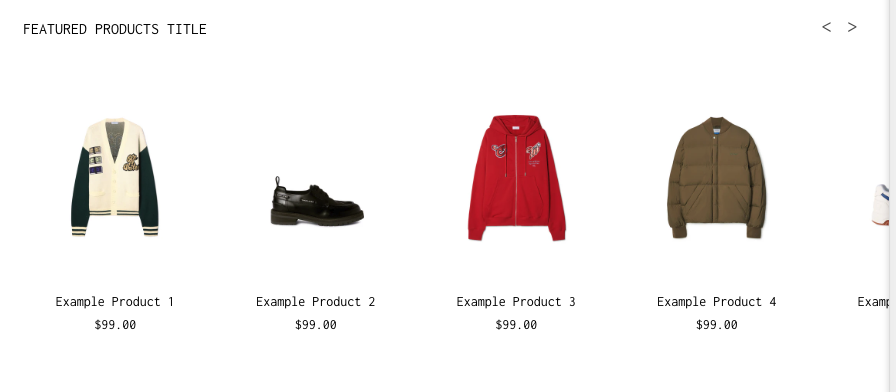
The Product Carousel section displays a scrollable row of featured products. It’s ideal for promoting a specific collection or highlighting bestsellers. Products can include pricing, labels (like “Sale” or “Sold Out”), and custom layout settings.
***
### How to Add the Section
1. In the **Shopify Theme Editor**, click **Add section**
2. Choose **Product Carousel**
3. Drag and drop the section where you want it on the page
***
### Content & Data Settings
* **Section Title**: Add a heading for the carousel (e.g., “Featured Products”)
* **Shop Link Text**: Add a call-to-action button (e.g., “Shop All”)
* **Shop Link URL**: Paste a collection or page link
***
### Layout & Display Options
* **Product Text Alignment**: Align titles left, center, or right
* Toggle the following options:
* **Show Product Titles**
* **Show Product Prices**
* **Show Compare at Price**
* **Show Sold Out Badge**
* **Show Sale Badge**
* **Show Pre-Order Badge**
> 💡 Tip: Enable badges to highlight discounts or stock status.
* **Products per Row – Desktop**: Choose how many products to display (1–6)
* **Products per Row – Mobile**: Choose between 1–3 products
***
### Typography Controls
* Adjust font sizes independently for desktop and mobile:
* Section Header
* Product Title
* Product Price
* Optional: Toggle **Bold** styles for:
* Section Title
* View Link
* Product Title
***
### Color Customization
* **Background Color**: Transparent, solid, or brand color
* **Section Title & Link Color**
* **Arrow Color** (navigation arrows)
* **Product Title Color**
* **Product Price Color**
Label colors for each badge:
* **Pre-Order**
* **Sold Out**
* **On Sale**
* **Compare at Price**
Each badge has both:
* Text color
* Background color
> ⚠️ Make sure text and background colors contrast clearly for legibility.
***
### Spacing Settings
You can adjust spacing for better visual balance across screen sizes.
**Desktop**
* Top spacing: 20px
* Bottom spacing: 20px
**Mobile**
* Top spacing: 16px
* Bottom spacing: 16px
Additional controls:
* **Space Between Section Header and Products**
* **Space Between Product Image and Info**
* **Space Between Product Title and Price**
* **Gap Between Products (Desktop and Mobile)**
***
### Navigation Context
Use the **Navigation Context** setting to define which collection customers stay in when clicking a product.
For example:
* If set to “Summer Collection,” clicking any product keeps customers browsing within that same collection.
If this is not set, clicking a product takes users to the product's standard page without collection context.
***
### **Need Help?**
* 💬 **Join our community on Discord:**
* 📧 **Email us at:**
* 💻 **Live chat with us:** Available Monday–Friday, 10AM–6PM EST, directly on our website
---
# Agent Instructions
This documentation is published with GitBook. GitBook is the documentation platform designed so that both humans and AI agents can read, navigate, and reason over technical content effectively. Learn more at gitbook.com.
## Querying This Documentation
If you need additional information that is not directly available in this page, you can query the documentation dynamically by asking a question.
Perform an HTTP GET request on the current page URL with the `ask` query parameter, and the optional `goal` query parameter:
```
GET https://docs.openspaces.design/readme-1/sections-and-features/product-carousel-section.md?ask=&goal=
```
`ask` is the immediate question: it should be specific, self-contained, and written in natural language.
`goal` is optional and describes the broader end goal you are ultimately trying to accomplish on behalf of the user. GitBook uses it to tailor the answer towards what is most useful for that goal.
The response will contain a direct answer to the question and relevant excerpts and sources from the documentation.
Use this mechanism when the answer is not explicitly present in the current page, you need clarification or additional context, or you want to retrieve related documentation sections.